.svg)
New booking process

Book a desk – step by step
On the startscreen, click “Book” in the navigation bar to open the booking screen with all available resources – for example, desks, zone seats or meeting rooms. Simply click on the relevant spot on the map to make a booking.
Of course, you can also filter the options to match your preferences. Here’s how it works, step by step ...
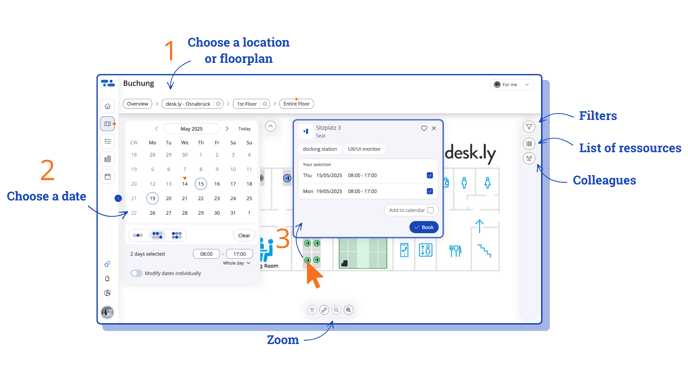
- Select the floor plan you want to book from. By default, you’ll see the one you've set as your primary area in your profile settings.
- Use the calendar to choose the day you want to book – you can also book for multiple days at once.
 Green markers show available desks or rooms based on your selection. Click directly on a green marker on the map to choose a space. Alternatively, you can use the list view on the right-hand sidebar.
A booking window will open, where you can review your selection and confirm it by clicking “Book” – and you’re done!
 You can easily add your booking to Outlook or Google Calendar.
Just click “Add to calendar” in the booking window.
Booking multiple spaces
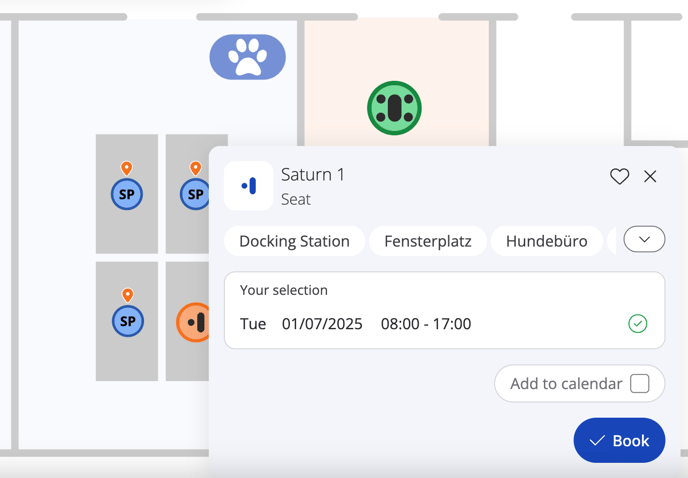
Want to book more than one space for the same day? No problem – simply click on another resource and confirm.
Please note: This only works, if your admin has enabled parallel bookings!
Narrow down your selection with filters
Use the filter options on the right-hand sidebar to define what your desk or room should offer. Matching resources will be displayed on the map.
-
Filters
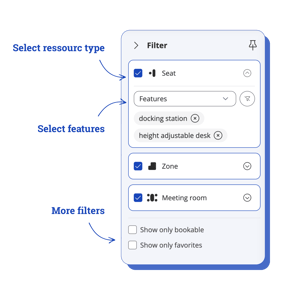
Use the filter options on the right-hand sidebar to define what your desk or room should offer.
Matching resources will be displayed on the map. -
Prefer a list view instead of the map?
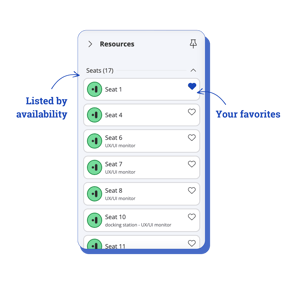
Switch to the list view to see all resources that match your filter – sorted by availability or alphabetically.
Your own bookings and favourites appear at the top for quick access.
You can switch back to the map view at any time and book from there. -
See your colleagues’ bookings
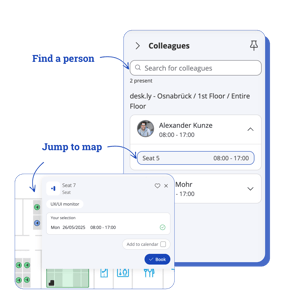
Click “Colleagues” in the right-hand sidebar to see who else has booked a space on the selected days. You can also search for specific people.
Click on a space name to jump straight to its location on the map. You’ll see if there’s a free desk nearby – and can book it instantly.
P.S. Jump-to-map works even if your colleague has booked on a different floor or at a different location than the one you’ve selected.
Old booking process
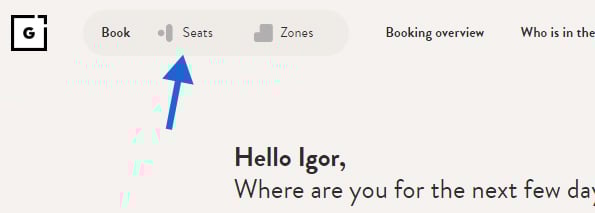
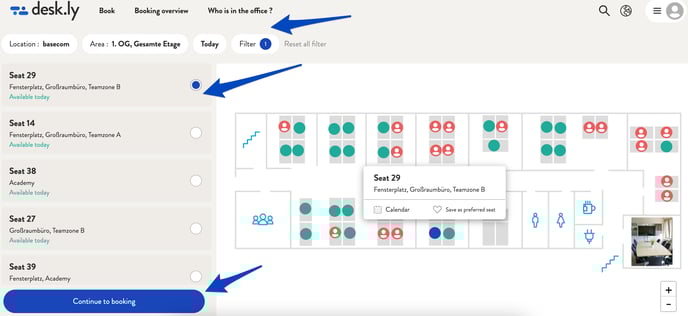
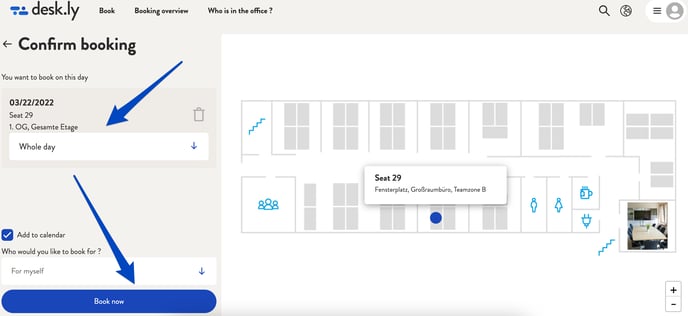
Click on the button "Seats" to get to the booking overview. Here you can select a location, the area and the days on which you would like to work in the office. If you wish, you can narrow down the selection of seats by using further filters*. Once you have decided on a seat, you can select it either in the list view or on the map. Then click on "Continue to booking" below the list view. You will then receive an overview of the seat or seats you would like to book. If you are still satisfied with your selection, click on "Book now".
*You would like to book a place for half a day? You can find this option in the overview under the button "Filter". Here you can choose how long you would like to book a place for. The following options are available: full day, morning, afternoon. Once you have decided on a duration, you can continue with the further steps as described above. If activated in the settings, you can book an individual time frame as well, how that works you can find here.
Let's get started:
1. Log in to your desk.ly account and click on "Seats" in the upper tab.
2. Select a location, the area and the day(s). Use the filter to narrow it down further. Then click on "Continue to booking".
3. Happy with your choice? Then click on "Book now". With the option "Add to calender" you will receive a reminder via. Mail and can add the booking to your individual calender.
Through the home page of desk.ly you also have the possibility to make an express booking, you can find information about it here : Express Booking & Status Message
Do you have any further questions?
You can contact our support team at any time by email (support@desk.ly). Monday to Friday between 9 a.m. and 5 p.m. we are also available via Live Chat and/or by phone at +49 541 9625 9040.
You also have the option of contacting our support here via the Help Centre. To do so, use the button "Contact the support team here", which you will find in the top right-hand corner.