.svg)
What are zones and how do they differ from individual desks?
Unlike individual desks, which can only be booked by one person at a time, zones are flexible work areas that companies can use for things like team spaces or quiet zones.
Zones have a defined capacity and can be booked by several people at once. For example, if your admin sets Zone 1 to have eight spaces, up to eight people can book it at the same time.
Within the zone, you’re free to choose any available desk. That’s why zones should always offer enough flexible and ideally similar workstations on-site.
How can I book a spot in a zone?
Under "Book", you'll find the booking view with all available resources – including places in zones, individual desks, and meeting rooms.
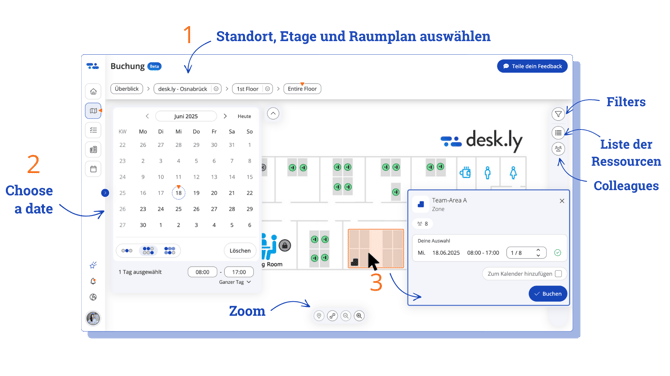
- Select the desired floor plan – by default, you'll see the one set as your primary area in your settings.
- Choose your preferred date in the calendar – you can also book multiple days at once.
- Green markers indicate in which zone there are spaces available. Click on your chosen zone, adjust the time if necessary, and confirm by clicking “Book” – done!
 In the booking window, select “Add to calendar” to automatically transfer your booking to your Outlook or Google Calendar.
Narrow down your selection with filters
Use the filter options on the right-hand sidebar to define what your zone should offer. Matching resources will be displayed on the map.
-
Filters
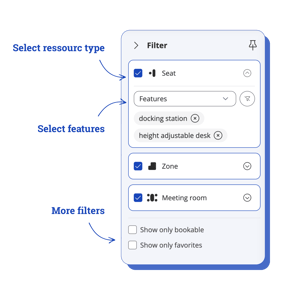
Use the filter option on the right-hand sidebar to define what criteria or equipment your spot should meet.
Matching resources will be displayed on the map. -
Prefer a list view instead of the map?
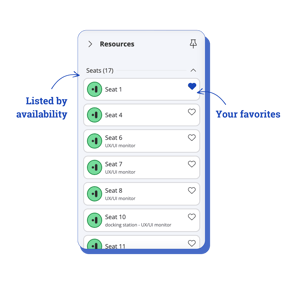
Switch to the list view to see all resources that match your filter – sorted by availability or alphabetically.
Your own bookings and favourites appear at the top for quick access.
You can switch back to the map view at any time and book from there -
See your colleagues’ bookings
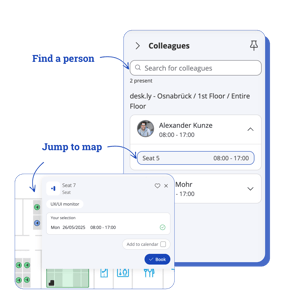
Click “Colleagues” in the right-hand sidebar to see who else has booked a space on the selected days. You can also search for specific people.
Click on a space name to jump straight to its location on the map. You’ll see if there’s a free desk nearby – and can book it instantly.
P.S. Jump-to-map works even if your colleague has booked on a different floor or at a different location than the one you’ve selected.