.svg)
Visitor Management complements guest bookings with a central dashboard, so you always know who's in the building.
- You get an overview of visits.
- You can narrow down the overview using filters or search.
- Attendances are logged precisely and with minimal effort.
- And you notify hosts with a single click.
In this article
 To use Visitor Management, your admin needs to have enabled guest bookings and given you, as a user, access to Visitor Management.
How to use Visitor Management – step by step
The visitor dashboard at a glance
.png?width=670&height=223&name=5%20G%C3%A4ste-Nummern%20(2).png)
-
Search by guest, host or company name.
-
Select the time period displayed.
-
Sort results.
-
Filter results.
-
Assign individual guest numbers.
-
Attendance is logged reliably.
-
With a single click, you can carry out actions such as checking guests in, notifying hosts by email, or checking guests out.
💡 Good to know: Guests can only be checked in on the day of their booking.
-
Export guest bookings as a CSV file.
Notifying hosts
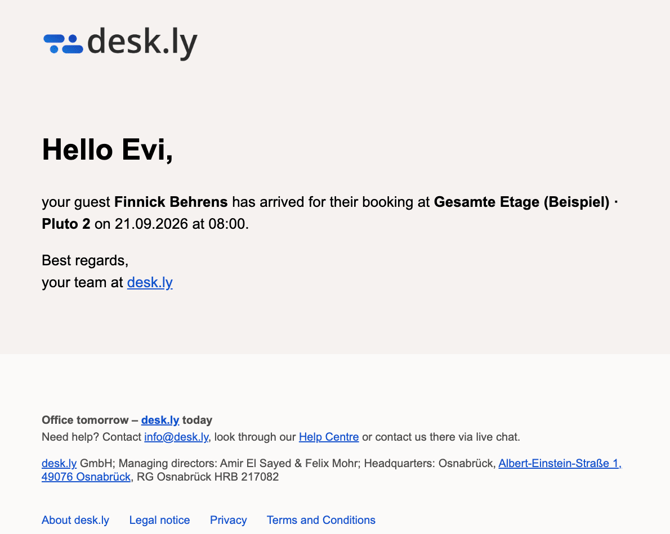
In Visitor Management, you can easily let hosts know that their guest has arrived. Clicking "Notify" triggers an automated email to the person who created the guest booking. Here's an example:
Exporting visitor data
Clicking "Export CSV" at the top right of the Visitor Management page gives you a downloadable list of all guest bookings. This list is automatically sent to you by email. This can take a few minutes.
 The download link in the email is valid for 24 hours. Once it expires, you'll need to have a new link sent to you.
The list contains all data on your guests, including host, resources, arrival and departure:

Do you have any further questions?
You can contact our support team by email at support@desk.ly at any time. From Monday to Friday, 9 am to 4 pm (CET), we are also available via live chat and/or by phone at +49 541 9625 9040.
You can also contact our support team here in the Help Centre by clicking the "Contact our support team" button in the top right corner. We are always happy to help!