.svg)
Do you have an important meeting coming up and need to reserve a room? With desk.ly, this isn't a problem as you can book a meeting room in 15-minute intervals.
How to book a meeting room
Under "Book", you'll find the booking view with all available resources – including meeting rooms, individual desks, and desks in zones.
- Select the desired floor plan – by default, you'll see the one set as your primary area in your settings.
- Choose your preferred date in the calendar and select the time.
- Green markers indicate available spaces for your selection. Click on your chosen space, adjust the time, and confirm by clicking “Book” – done!
- If your admin has enabled the calendar sync, you can also book your meeting room directly in Outlook or Google when setting up the meeting.
 In the booking window, select “Add to calendar” to automatically transfer your booking to your Outlook or Google Calendar.
Narrow down your selection
If you want to narrow down your selection, you'll find filter options in the sidebar on the right.
-
Filters
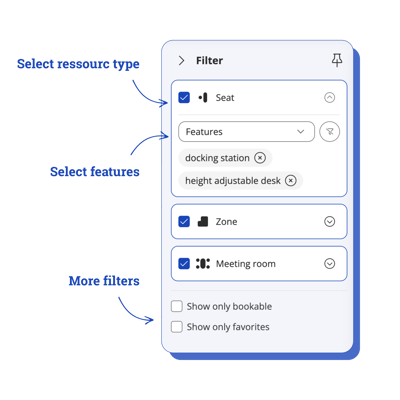
Open the filters and choose the criteria your space should meet.
The map will then show only the matching resources. -
A list view as an alternative to the map
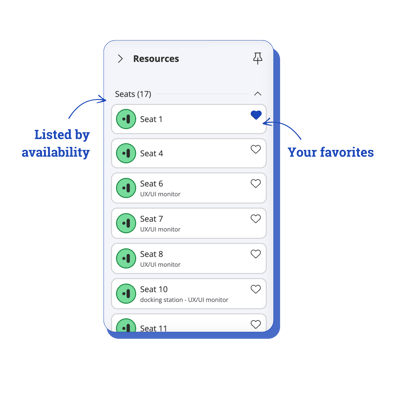 Here you’ll see all resources that match your filter criteria, sorted by availability or alphabetically.
You can switch to the map view at any time and make your bookings there.Your own bookings and favourites are highlighted at the top of the list so you can find them quickly.
Do you have any further questions?
Our support team is available to assist you via email at support@desk.ly, as well as by our live chat and/or phone at +49 541 9625 9040, from Monday to Friday from 9am to 4pm. You can also contact our support team through the Help Center by clicking on the "Contact Support" button located at the top right corner. We are always glad to help!