.svg)
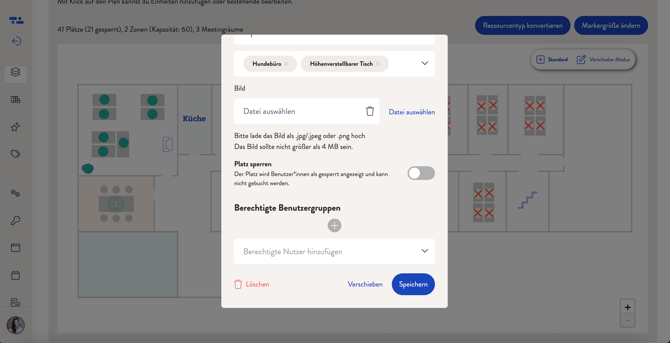
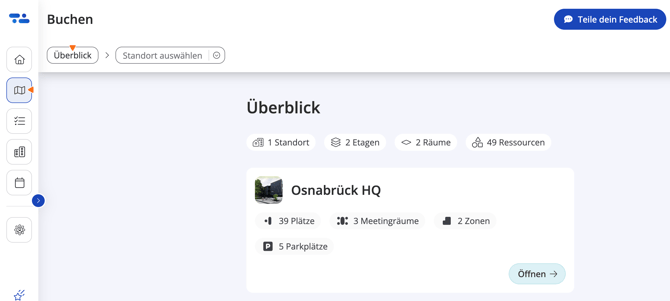
To make your floor plans even more engaging, you can upload an image for each individual resource, which will then be visible in the booking view. You can also add images for your locations, which will appear under "Book" in the location overview.
Add location images
1. Go to the admin area.
2. Navigate to "Plans" and select the desired location.
3. In the "Edit location" field, you can now upload an image.
4. Save your changes. That's it!
Add resource images
1. Under "Plans", select the relevant floor plan.
2. Scroll down to the map and click on a resource to edit it.
3. In the pop-up window, you can upload an image under "Image".
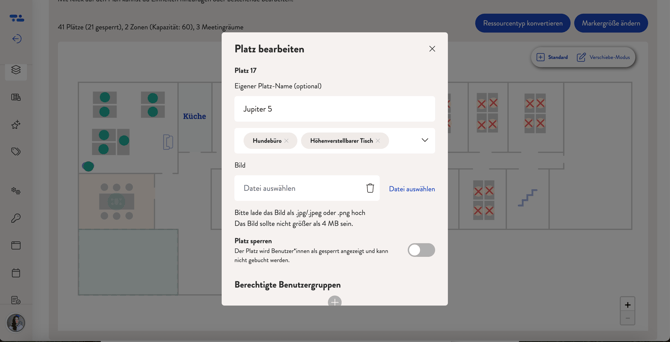
5. Save your changes and you're done!