.svg)
In desk.ly, you can …
- book in just two clicks from the home screen using the booking suggestions. This is the express booking.
- or make a custom booking under “Book”, with options for multiple days, filters, colleague search and lots more.
In this video, Vanessa shows you how to make an express booking and a custom booking
Below, you’ll find more detailed instructions on:
Express booking with the booking suggestion
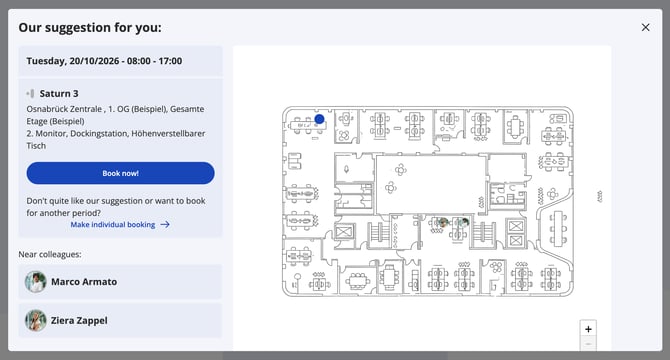
The home screen shows an overview of the next five working days. For any day you haven’t booked a desk yet, you’ll get a booking suggestion.
Click the “Booking suggestion” button to open the detailed view. On the left, you’ll find more information about the desk, such as the floor or its features. On the right, the suggested desk is highlighted in blue on the floor plan.
Click “Book now!” and the desk is yours.
Custom booking – all your options explained step by step
On the startscreen, click “Book” in the navigation bar to open the booking screen with all available resources – for example, desks, zone seats or meeting rooms. Simply click on the relevant spot on the map to make a booking. This tutorial guides you through the process step by step.
- Select the floor plan you want to book from. By default, you’ll see the one you've set as your primary area in your profile settings.
- Use the calendar to choose the day you want to book – you can also book for multiple days at once. Select a time slot or a edit the time frame manually.
 Good to know: You can also create custom time slots that fit your work schedule.
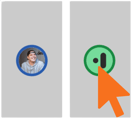 Green markers show available desks or rooms based on your selection. Click directly on a green marker on the map to choose a space. Alternatively, you can use the list view on the right-hand sidebar.
A booking window will open, where you can review your selection and confirm it by clicking “Book” – and you’re done!
 You can easily add your booking to Outlook or Google Calendar.
Just click “Add to calendar” in the booking window.
Booking multiple spaces
Want to book more than one space for the same day? No problem – simply click on another resource and confirm your booking.
Please note: This only works, if your admin has enabled parallel bookings!
Narrow down your selection to find just the right spot
Watch the tutorial or see a short description below:
Filters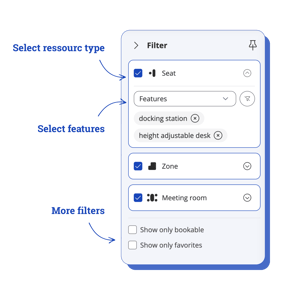
Use the filter options on the right-hand sidebar to define what your desk or room should offer.
Matching resources will be displayed on the map.
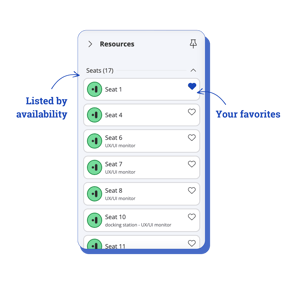
Prefer a list view instead of the map?
Switch to the list view to see all resources that match your filter – sorted by availability or alphabetically. Your own bookings and favourites appear at the top for quick access.
You can switch back to the map view at any time and book from there.
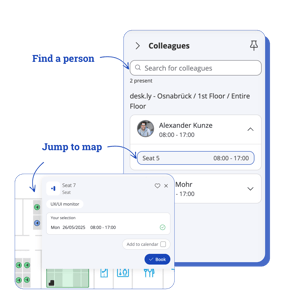
See your colleagues’ bookings
Click “Colleagues” in the right-hand sidebar to see who else has booked a space on the selected days. You can also search for specific people.
Click on a space name to jump straight to its location on the map. You’ll see if there’s a free desk nearby – and can book it instantly.
P.S. Jump-to-map works even if your colleague has booked on a different floor or at a different location than the one you’ve selected.
Do you have any further questions?
You can contact our support team at any time by email (support@desk.ly). From Monday to Friday between 9 a.m. and 4 p.m., we are also available via live chat and/or by phone at +49 541 9625 9040.
You also have the option of contacting our support here via the Help Centre. To do so, use the button "contact the support team here", which you can find in the top right-hand corner.