.svg)
You can decide how anonymously desk.ly is used in your organisation. This determines whether users are visible with their name and profile picture in the colleague search, under “Who’s in the office?” and on booking plans.
- How to configure the anonymisation options
- How do I change how long booking data is stored before anonymisation?
How to configure the anonymisation options
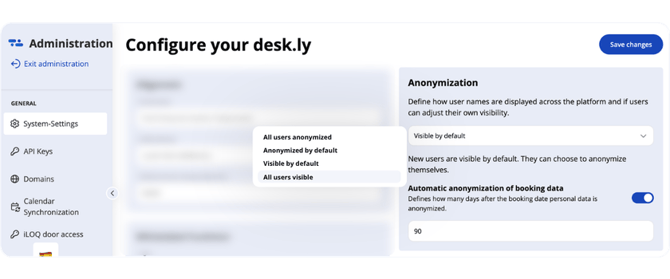
In the admin area, go to the system settings, where you’ll find the Anonymisation section. The drop-down menu offers several options:
- All users anonymised
Names are hidden everywhere. Users cannot change this setting. - New users anonymised
New users are anonymised at first. In their personal settings, they can choose whether their name is visible to colleagues. - Visible by default
All users are visible by default. In their personal settings, they can choose to remain invisible. - All users visible
All users are shown with their names. This cannot be changed in the personal settings.
How do I change how long booking data is stored before anonymisation?
By default, even visible booking data is anonymised 90 days after the booking date, i.e. the date for which the booking was created.
 With desk.ly Enterprise Plus, you can set the anonymisation period freely, anywhere between 2 and 1,000 days. Here’s how:
- Turn on the toggle next to “Automatic anonymisation of booking data”.
- Enter the number of days after the booking date when the data should be anonymised.
Any other questions?
You can contact our support team at any time by email (support@desk.ly). From Monday to Friday between 9 am and 4 pm, we’re also available via live chat and/or by phone on +49 541 9625 9040.
You can also contact support directly through the Help Centre. Just use the “Contact support here” button in the top right-hand corner.