
To make your floor plans even more engaging, you can upload an image for each individual resource, which will then be visible in the booking view. You can also add images for your locations, which will appear under "Book" in the location overview.
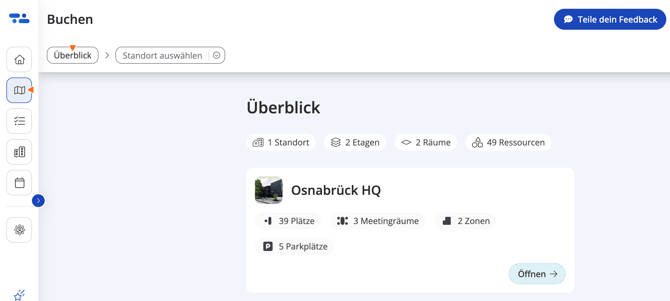
Add location images
1. Go to the admin area.
2. Navigate to "Plans" and select the desired location.
3. In the "Edit location" field, you can now upload an image.
4. Save your changes. That's it!
Add resource images
1. Under "Plans", select the relevant floor plan.
2. Scroll down to the map and click on a resource to edit it.
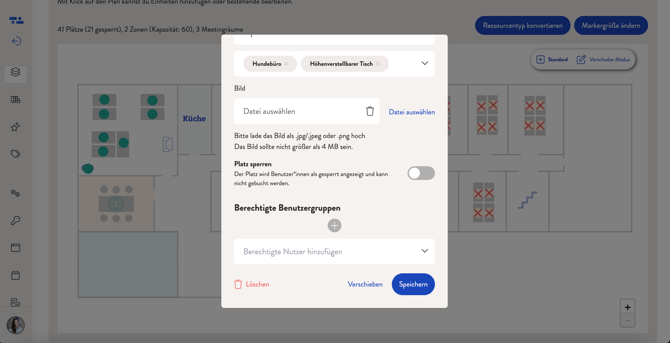
3. In the pop-up window, you can upload an image under "Image".
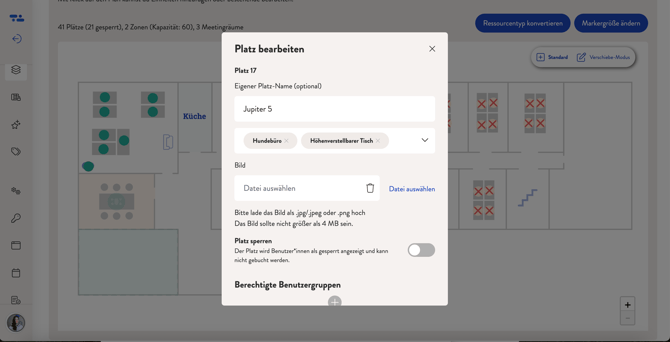
5. Save your changes and you're done!
 Available from Enterprise. Please contact us to learn more about your upgrade options!
Do you have any further questions?
You can contact our support team by email at support@desk.ly at any time. From Monday to Friday, 9 am to 4 pm (CET), we are also available via live chat and/or by phone at +49 541 9625 9040.
You can also contact our support team here in the Help Centre by clicking the "Contact our support team" button in the top right corner. We are always happy to help!